
How to Embed Instagram Feed To Your Website
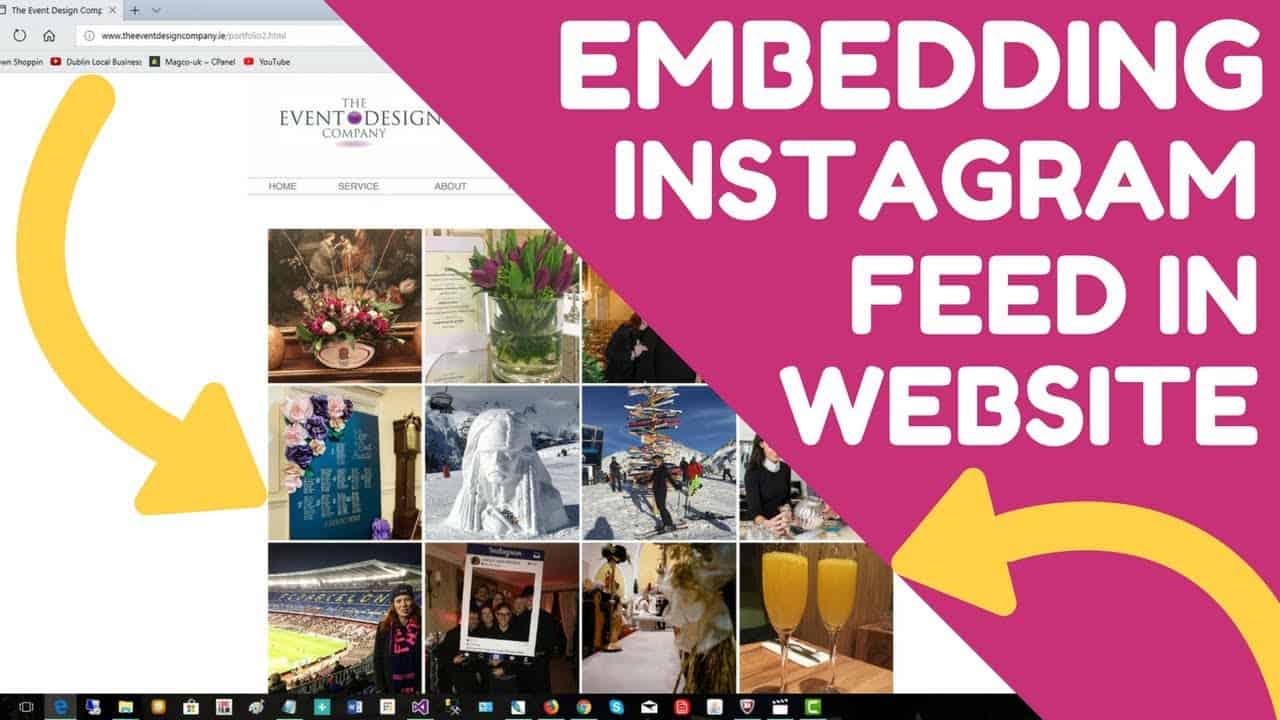
How to Embed Instagram Feed on Your Website: A Step-by-Step Guide
In today’s digital landscape, integrating social media content into your website can enhance engagement, showcase your brand’s personality, and keep your site visually dynamic. One of the best ways to do this is by embedding an Instagram feed directly onto your website.
In this comprehensive guide, we’ll walk you through the process of embedding an Instagram feed on your site, whether you’re using WordPress, Shopify, or a custom HTML site. We’ll also explore the benefits of displaying Instagram content and review some of the best tools available.
Why Embed an Instagram Feed on Your Website?
Before diving into the “how,” let’s look at the “why.” Here are some key benefits of embedding an Instagram feed on your website:
1. Boost Engagement
Instagram is a highly visual platform, and displaying your feed on your website encourages visitors to interact with your content, follow your profile, and even share your posts.
2. Enhance Visual Appeal
An Instagram feed adds dynamic, fresh content to your website, making it more visually appealing and engaging.
3. Increase Social Proof
Showcasing user-generated content (UGC) from customers using your products or services builds trust and credibility.
4. Drive Traffic to Your Instagram
By embedding your Instagram feed, you can encourage website visitors to follow you on Instagram, helping grow your social media presence.
5. Keep Content Fresh
Unlike static images, an embedded Instagram feed automatically updates, ensuring your website always has fresh content without manual updates.
How to Embed an Instagram Feed on Your Website
There are several ways to embed an Instagram feed, depending on your platform and needs. Below, we’ll cover the most common methods.
Method 1: Using Instagram’s Native Embed Feature
Instagram allows you to embed individual posts directly into your website using their built-in feature. Here’s how:
Steps to Embed a Single Instagram Post:
Open Instagram and navigate to the post you want to embed.
Click the three dots (⋯) in the top-right corner of the post.
Select “Embed.”
Copy the HTML code provided.
Paste the code into your website’s HTML editor (WordPress, Shopify, or custom HTML).
👉 Pros: Simple, no third-party tools required.
👉 Cons: Only works for single posts, not entire feeds.
Method 2: Embedding an Instagram Feed Using a WordPress Plugin
If you’re using WordPress, plugins make embedding an Instagram feed incredibly easy. Some popular options include:
A. Smash Balloon Instagram Feed
One of the most popular Instagram feed plugins for WordPress, Smash Balloon offers customization, moderation, and automatic updates.
Steps to Set Up:
Install & activate the Smash Balloon plugin.
Connect your Instagram account via the plugin settings.
Customize the feed layout (grid, carousel, etc.).
Copy the shortcode and paste it into any page or widget.
B. Feed Them Social
Another great option, Feed Them Social supports multiple social platforms, including Instagram.
Steps to Set Up:
Install the plugin from the WordPress repository.
Generate an Instagram access token (requires a Facebook Developer account).
Configure the feed settings (size, style, etc.).
Embed using the provided shortcode.
👉 Pros: Full customization, supports hashtag feeds, and user-generated content.
👉 Cons: Some plugins may require a premium plan for advanced features.
Method 3: Using a Third-Party Widget (For Shopify, HTML, or Other Platforms)
If you’re not using WordPress or want a more flexible solution, third-party Instagram feed widgets are a great choice. Some top options include:
A. Elfsight Instagram Feed
Elfsight offers a user-friendly widget that works on any platform (Shopify, Wix, HTML, etc.).
Steps to Set Up:
Customize your feed (layout, colors, hover effects).
Copy the embed code and paste it into your website’s HTML.
B. Taggbox
Taggbox is another powerful tool for embedding Instagram feeds with UGC support.
Steps to Set Up:
Sign up for Taggbox and connect your Instagram account.
Moderate and customize your feed.
Generate the embed code and add it to your website.
👉 Pros: Works on any platform, supports moderation, and hashtag aggregation.
👉 Cons: Some features may require a paid plan.
Method 4: Manually Embedding Instagram Feeds Using the Instagram API (For Developers)
If you need full control over your Instagram feed, you can use the Instagram Basic Display API to fetch and display posts programmatically.
Steps to Implement:
Register as a Facebook Developer and create an app.
Set up Instagram Basic Display API and get an access token.
Use JavaScript or PHP to fetch Instagram posts.
Style and display the feed on your website.
👉 Pros: Fully customizable, no plugin dependency.
👉 Cons: Requires coding knowledge, more complex setup.
Best Practices for Embedding Instagram Feeds
To make the most of your embedded Instagram feed, follow these best practices:
✅ Keep It Updated – Ensure your feed refreshes automatically or manually update it regularly.
✅ Moderate Content – If using UGC, filter out irrelevant or low-quality posts.
✅ Optimize for Mobile – Test how the feed looks on mobile devices.
✅ Use a Clean Layout – Avoid cluttering your website; choose a grid or slider that fits your design.
✅ Encourage Engagement – Add a CTA like “Follow us on Instagram” to boost followers.
Embedding an Instagram feed on your website is a powerful way to enhance engagement, showcase your brand, and keep your content fresh. Whether you use a WordPress plugin, a third-party widget, or a custom API solution, there’s a method that fits your needs.
By following this guide, you can seamlessly integrate Instagram into your website and leverage its visual appeal to attract and retain visitors.